API and SOAP
The details for these endpoints will need to be included in your rossum extension secrets regardless of which ERP system you are using.
However if you are on premise and have not published your APIs before then please continue below.
If you are using ERPx or ERP on the cloud environment, these steps should already have been undertaken by Unit4.
Note that these steps may already have been completed as a part of your install or for other projects.
To enable the OCR to connect to your UNIT4 ERP system, the API and SOAP services need to be configured on a web server.
The API is required for the Masterfile and enquiry functionality, theSOAP services are required for sending and receiving invoices and payment transactions.
These are configured in the UNIT4 ERP management console on the webserver.
REST API
The rest API is added by right clicking on the website in the UNIT4 ERP management console and selecting add then selecting the Api Server which will start the wizard.
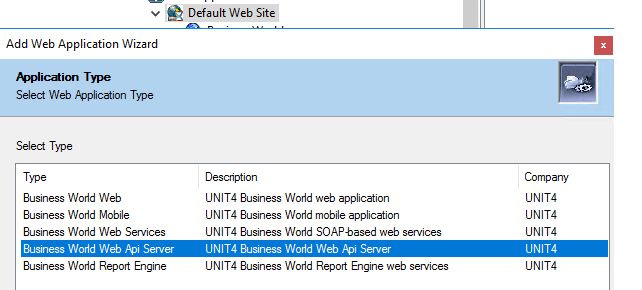
This should then be configured per your requirements, you must be using HTTPS for the communication.
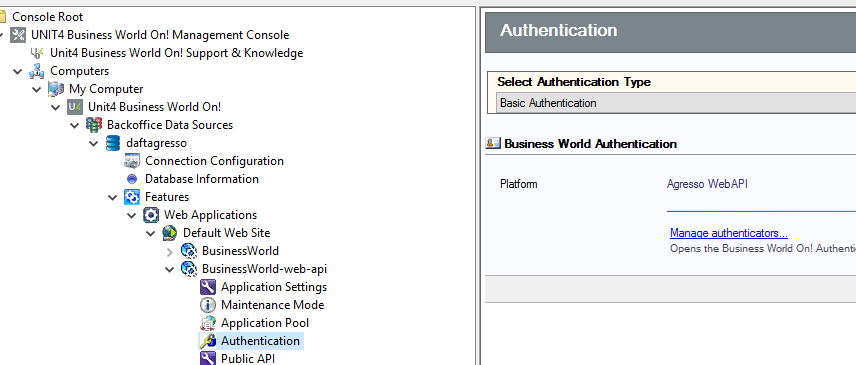
Authentication under the Api node should be set to Basic or IDS Authentication
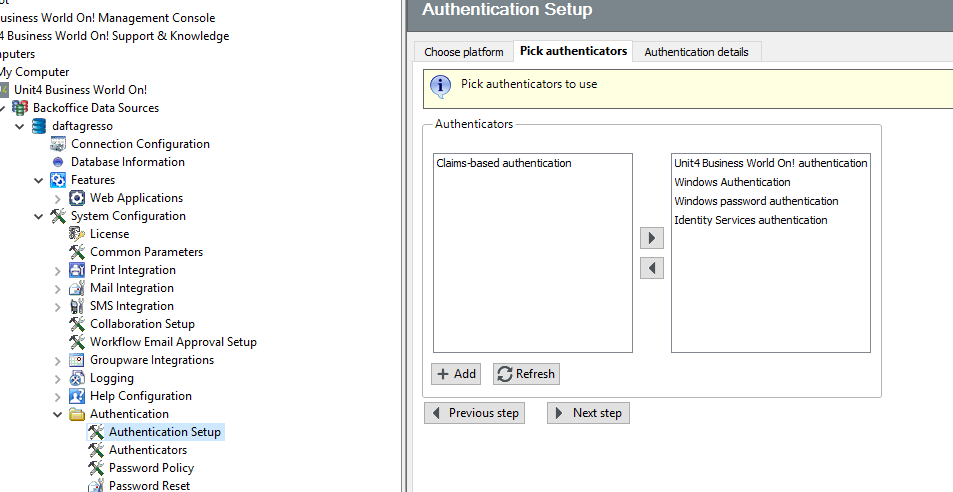
Under authentication setup, the web platform should be set up to include Business World On! Authentication
You can test the API is working
By navigating to the SWAGGER documents using a URL such as:
https://localhost/BusinessWorld-web-api
Where [localhost] is your domain / server name (or local host on the server) and [BusinessWorld-web-api] is the name you installed the api server as in management console.

If successful you should see a page such as below:
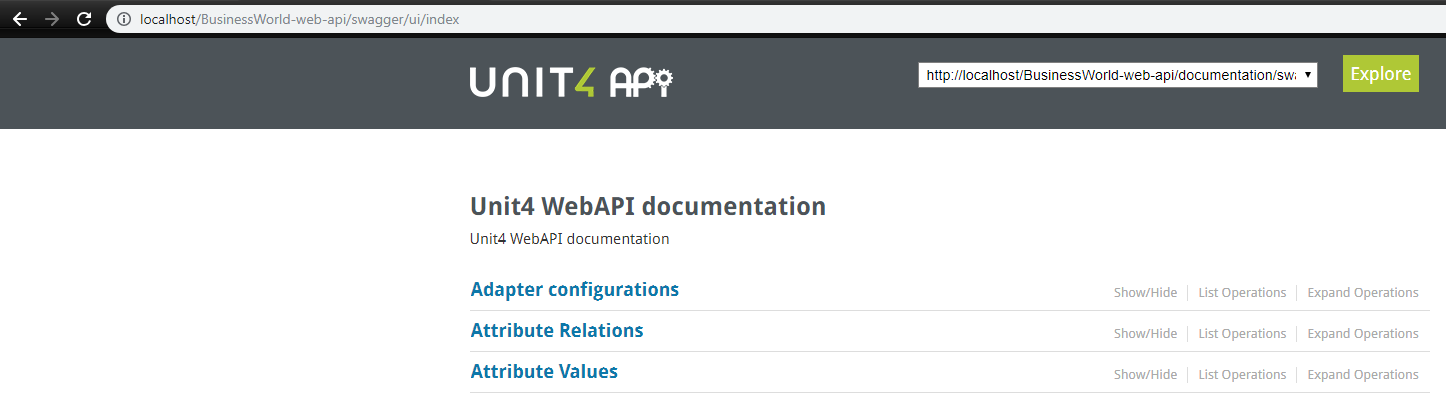
You shouldn't publish SWAGGER in certain environments, please refer to the business world technical documents for more information
SOAP Webservices
The webservices are added by right clicking on the website in the UNIT4 ERP management console and selecting add then selecting the SOAP-based web services which will start the wizard.
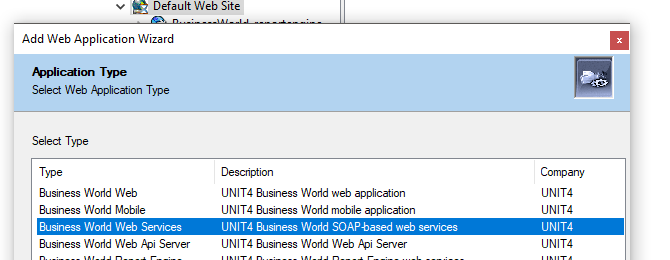
recommend using HTTPS for the communication.
You then need to publish the web services under the Publish node
Finally, you need to use the Web Services node to publish the document archive web service
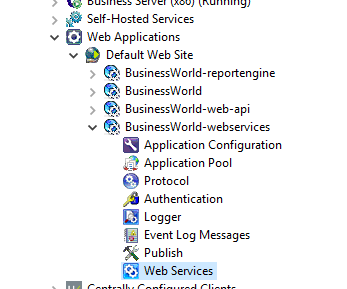
When you click this, you will then see an add button on the right hand menu, which will open the add web services wizard.
Click next and you can then select the web services you want to publish, find the DocArchiveV201409 and select it.
You will also need to publish the ImportServicev200606
Click next and finish and the web service(s) will be published.
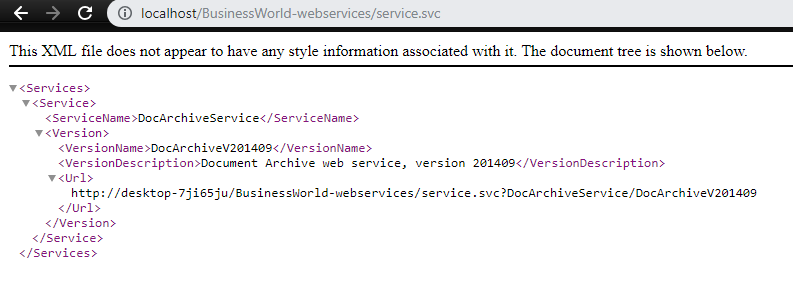
You can navigate to the webservices to check they are working, again replace localhost with your domain or server name.