Overview
Rossum Documentation
The Rossum team have a lot of excellent and up to date documentation about how best to use their product.
Some settings and items discussed may not be available to you if you are on our hosted service. Please contact the support team if you wish anything to be changed.
The aim of this guide is to supplement that with the specifics of using the system with our ERP integration
Quick Overview
- Documents are emailed to your rossum queue email, OR uploaded into the screen
- Rossum extracts the data and communicates with ERP via the ERP-Apps service for things like suppliers & orders
- If the document is extracted well, it will be passed directly to ERP (if automation is on)
- If manual input is required the document will go go the "reviews" step. Rossum Guide to Annotating
- Documents that are reviewed will be sent to the ERP once the data is corrected and the user clicks the "Confirm" button
- For ERP-X we will send the transaction data and then attach the document. Note we can not report on EI02 / IMS failures, this should be handled internally in Unit4)
- We will also send a text file which contains all of the info / warning messages from the system.
The ERP APPS Service
The ERP APPS service will run automatically when
- A document is being imported or exported
- Data is changed within the document screen
The microservice can run for up to 30 seconds, you can tell when it is running as the confirm button at the bottom of the page will show a spinning wheel and "validating"

System Flow
-
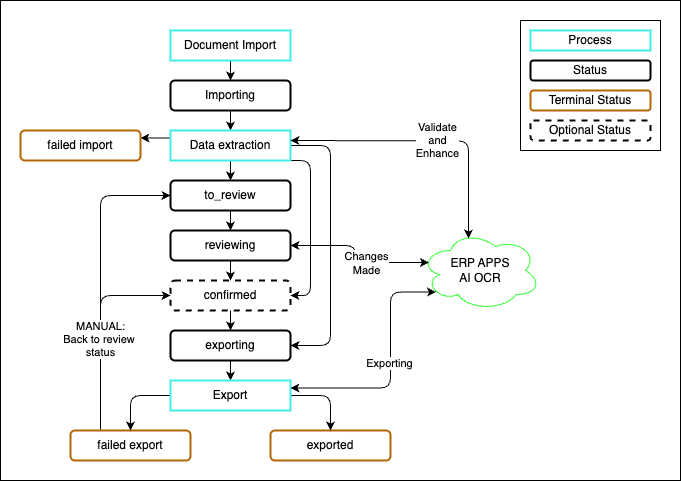
Documents are imported into the OCR via email or uploading into the screen with the status of IMPORTING
-
The OCR system will extract the data, while also talking to the micro-service to perform calculations and match to ERP data IMPORTING
-
The next steps will then depend on your automation setup. Internally the system will assign either a to_review or a confirmed status
TO_REVIEW the AI OCR was not able to confirm all details on the invoice, or the microservice provided error messages back to the system. The document must be followed up by a human and then exported using the button in the screen. Documents will be showing as REVIEWING while someone is in the document.
CONFIRMED the invoice was fully validated and is ready to export. Note that the system may automatically export the invoice to your ERP if your Rossum automation settings allow (You allow some automation and you do not show the confirmed state).
-
Once the document is confirmed automatically or manually, the microservice will run the export to ERP and will either leave the document in an EXPORTED or a FAILED EXPORT status.
- It will also send a text file which contains all of the info / warning messages from the system(you can configure what messages are sent in the extension configuration), this can be used to check if there were any warnings generated. (We are working on a way to make these more visible in the Incoming Invoices Screen).
-
When the status is EXPORTED the Rossum system will be updated with the transaction number (ERPx) or the EI02 report number (ERPCR/ERP7)
-
Please note with ERPCR/ERP7 EI02 / IMS failures should be appropriately handled in Unit4 as we can not “see” any errors once we send the data over. The API we’re using only allows us to push the request to be run later, not to run the EI02.
-
Also note that the EI02 number is approximate, if multiple requests are sent closely together, the ERP system will process multiple invoices on one EI02 report. Unfortunately we are not able to retrieve the transaction number from ERPCR/ERP7 as the EI02 runs asynchronously when we request it.
-
-
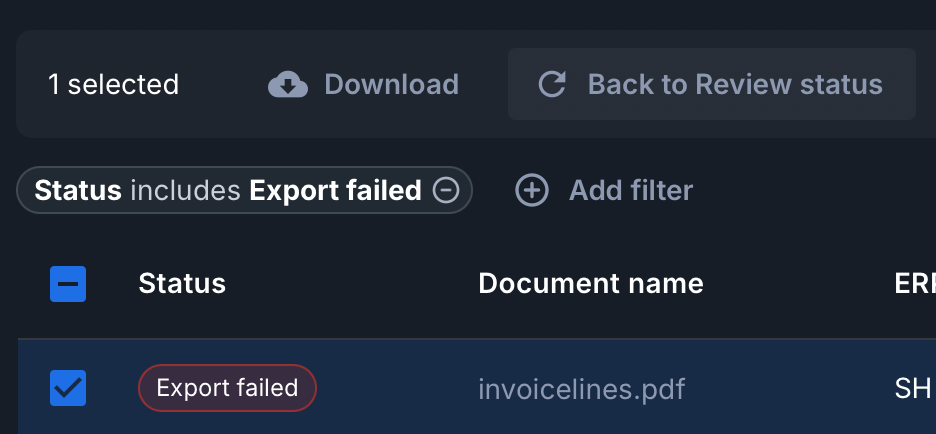
To re-process a FAILED EXPORT item, a user will need to manually send the document back to the TO_REVIEW status, from the exported page. This is done by selecting the document(s) and then choosing the "Back to Review status" from the options.