Troubleshooting
General advice
Once trained, we find the document handling to be reliable and repeatable; however, when initially setting up the extension or when handling poor input data you may find that some troubleshooting is required.
Below we outline a few common issues which we have seen and then a comprehensive list of error codes which we may report, and what you can do to address these.
Some of these settings will not be available to you if you are on our hosted service. Please contact the support team if you are unsure.
Please ensure that any issues are logged with your support provider and not directly with Rossum.
If required, the support provider will log issues with Rossum on your behalf.
Which system? Rossum vs the Extension
Messages may be generated either by Rossum or the Extension, data is extracted by Rossum and out of the box is only manipulated or updated by the extension. This is not always the case if you have set up additional extensions or formula
Messages
To determine which system is responsible is relatively straight forward
- Extension messages will include a [XX_000] style code
- Extension messages may also have a link to the extension
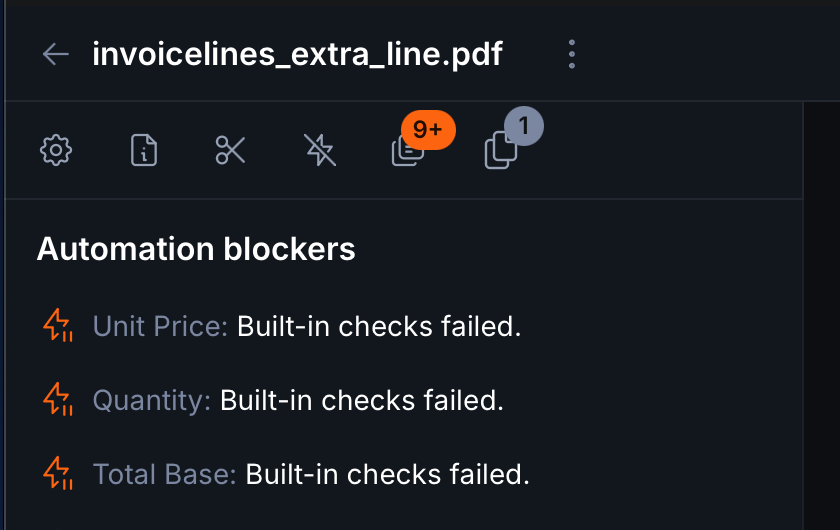
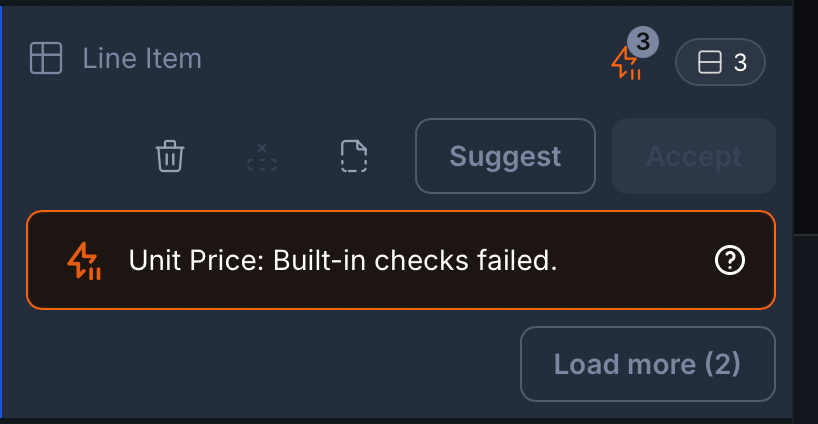
- Rossum messages will not include an error code
- Rossum messages may include a link to Rossum's help files
Examples of Rossum Messages
Examples of Extension Messages
![shows errors with codes [INL_004] and [INL_003] on an extracted invoice line](/assets/images/troubleshooting_which_system_extension_message_code_only-4f99dca1240c3adf8c166b88290c2ef5.png)
![shows error at the header with code [IN_006] and a link to the extension](/assets/images/troubleshooting_which_system_extension_message_extension_link-b9c4c7e2553cd6f946e05c99a9c42935.png)
Data
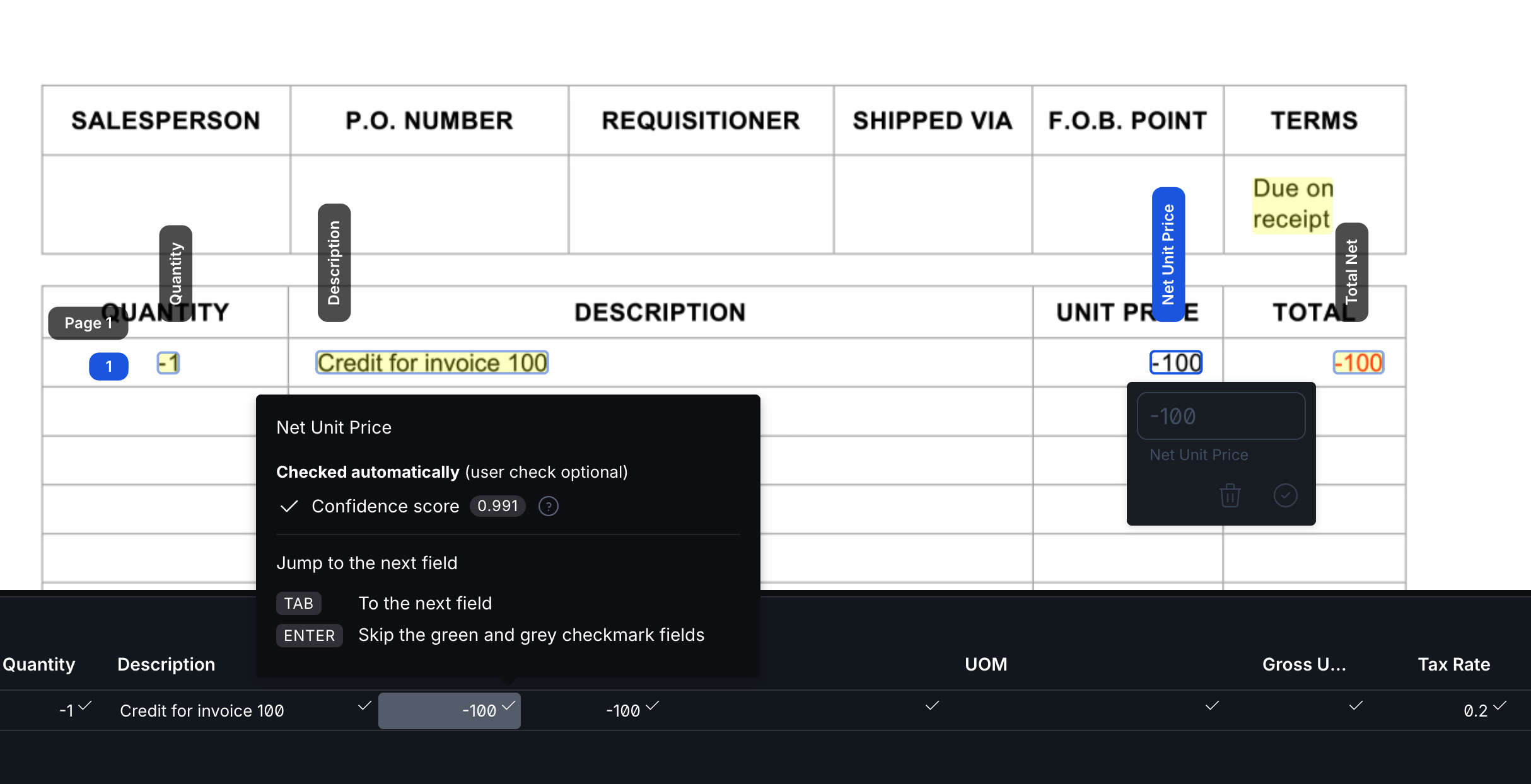
- Data extracted by Rossum will have a confidence score
- Data extracted by Rossum will point you to the data when clicking on it
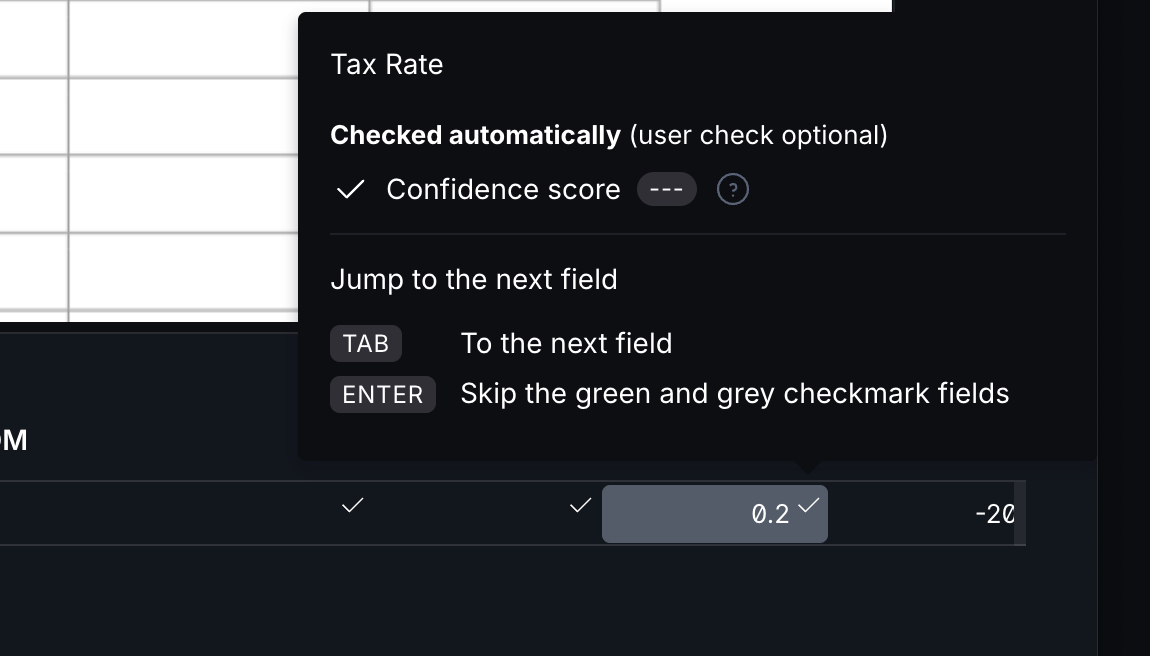
- Data inserted by the extension will have no confidence score
- Data inserted by the extension will not point to data on screen
The data inserted by the extension may include and may not be limited to:
- Calculated and filled line item amounts to help balance the invoices
- Suppliers / Vendors
- Accounting information
- Purchase order information
- Purchase order numbers and line numbers against line items
Rossum extracted data
Extension inserted data
Messages and Logs
For export errors specifically, these may be hidden in the "Toggle Document Info" panel.
Initially you may like to first look at any automation blockers in the documentation page. These usually carry tips on how to bypass any simple data issues.
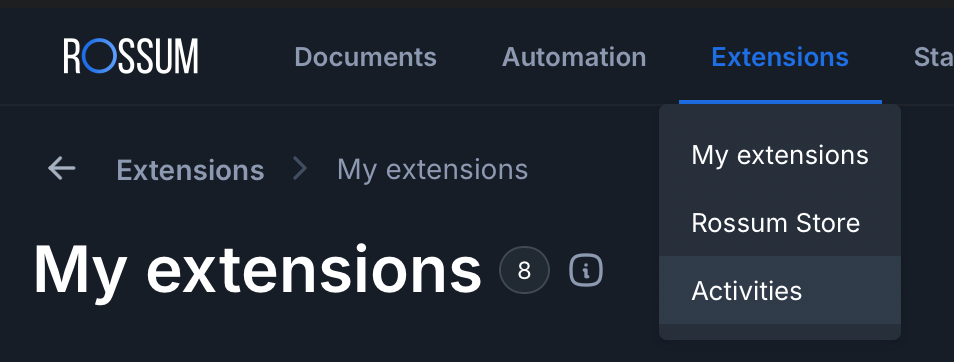
If that fails to resolve the issue you can look at the Extension Logs on Rossum (now called activities ) which should include a detailed error in the response section. Note some users on our hosted solution may not have access to this, in this case please contact support for further assistance.
The extension logs / activities menu can be found here:
Testing Your Extension
You can now test your extension connection back to Unit4 which may help solve some issues
Error Messages
Please note, when looking at error messages there may be more than one error code in the response. For example:
[EX_001]: Export Invoice Failed Previous errors: [IF_009]: Failed to export invoice due to errors in the document: Transaction with this invoice ID already exists in ERP
In this example EX_001 is a general error that lets us know it's an export which is failing. The solvable error is IF_009; for which the solution may be to edit the invoice number inline, or to remove a mis-entered invoice from ERP, or perhaps to ask the supplier to re-issue with a new invoice number in the instance that this is a mistake on their part.
Troubleshooting in Rossum Activities
Please note that Rossum Activities are only retained for 7 days (we understand that this can not be changed).
We usually avoid documenting specific Rossum features as they are subject to change. However we felt that a "handy hint" for debugging in Rossum would be useful
-
Find the document / annotation id number, this will be in the url for your document for example if you are working on a document the URL will look something like this: rossum.ai/document/
87633841?datapointPath=15355140122,15355140145 The highlighted part is the annotation id, copy this -
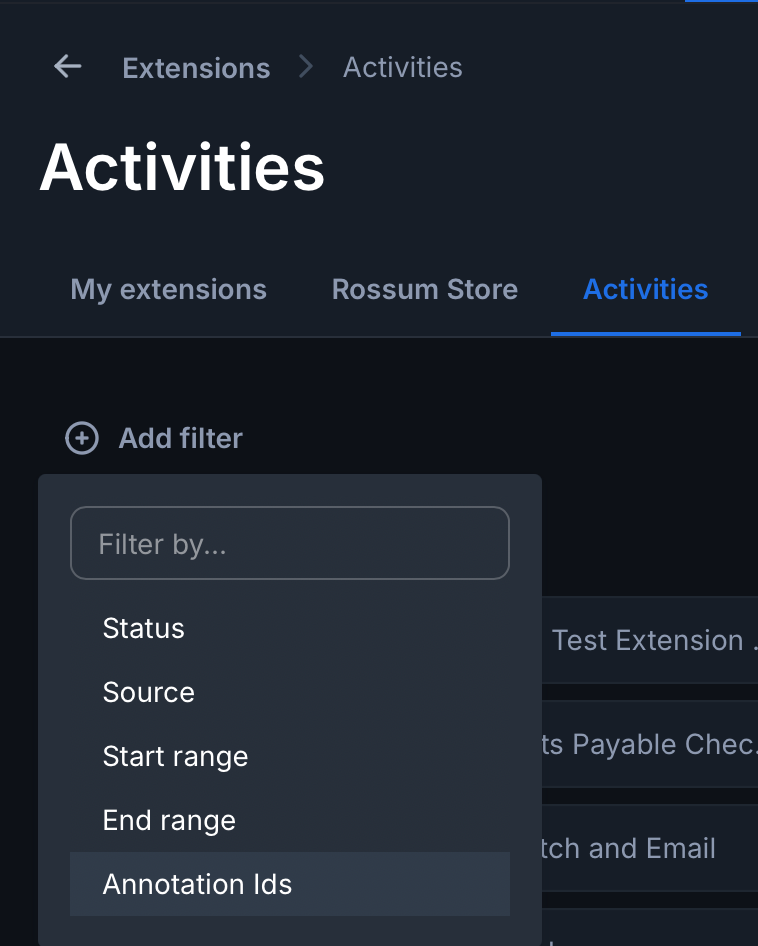
In activities select the Add filter button in the top left and choose: Annotations Ids
-
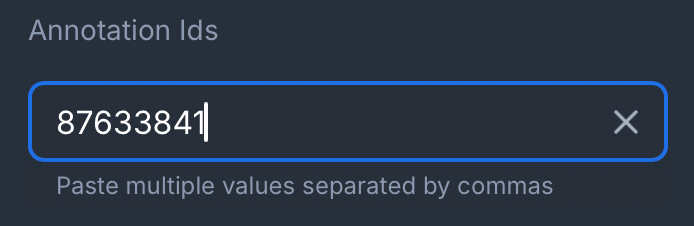
In the box add the annotation id, but notice that it won't "take", you must add the comma after the id even if there is only one
-
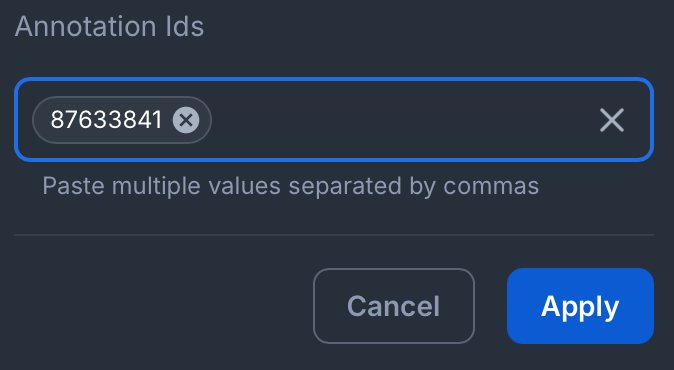
The annotation id will then "take" and you can click the apply button
-
You will then see all the "activities" for this document
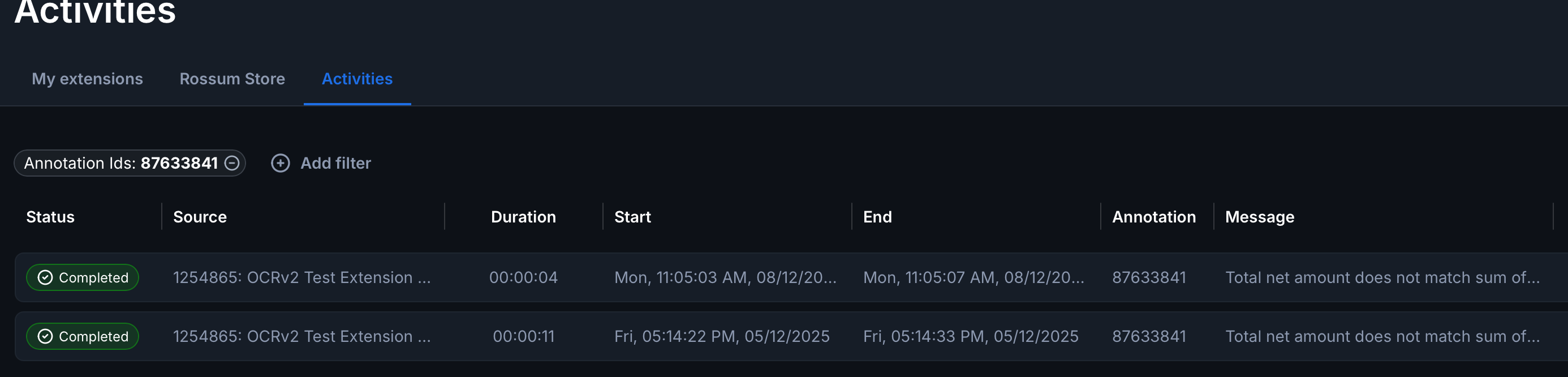
-
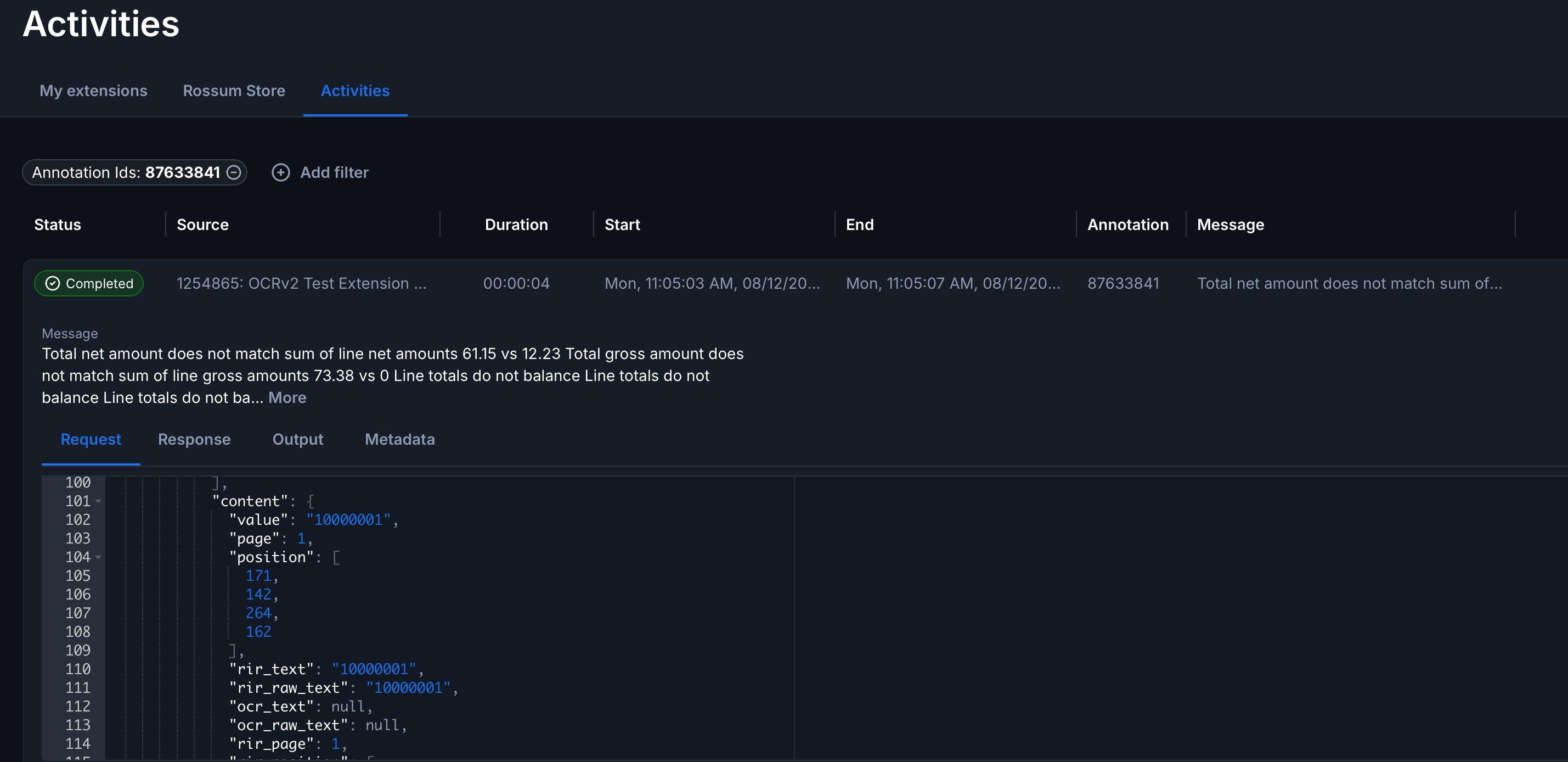
If you expand an activity you can then see the detail underneath it:
- Request : The data that rossum is sending to the extension, this should be a full document object so you should be able to find all of the data in here.
- Response: The response back from the extension which will usually include operations (where things are being updated) and messages.
- Output: Additional data may be presented here.
- Metadata: Additional data pertaining to the hook.
Common issues
Invoices are sent to Unit 4 but not marked as exported.
This is usually caused by being unable to access Rossum's API. In your extension configuration ensure there is a user selected in the Access to Rossum's API from extension dropdown, and that the chosen user has adequate permissions to mark a document as exported.
Export fails immediately with a [DA_009] error, or a 404 is seen when reading the document / calling Rossum's API
The extension calls back to Rossum's API (for example to fetch the document file) using the token owner configured in the extension's advanced settings. If that user has since been deactivated, deleted, or had their access revoked, Rossum will respond with a 404 as if the resource doesn't exist, even though the document itself is fine.
To resolve this:
- Go to the extension's advanced settings in Rossum and check the token owner (sometimes labelled Access to Rossum's API from extension).
- Confirm that user still exists, is active, and has not had their permissions or queue access removed.
- If the user is no longer valid, select a different active user as the token owner and save.
- Re-trigger the export.
We fail the export immediately in this case (rather than retrying) since retries will not succeed until the token owner is corrected.
The data from unit4 is not being updated in Rossum
This is likely down to the caching and the settings that control the refresh time.
Unit4 webservice (MS7 / CR) returns a response like File size [1994322] is larger than maximum [1024000]
Even though you have a large document size set on your document type, the system still won't accept a large document.
This is a setting at the webserver level which needs to be configured in the antisamy.xml. This can only be done on the webserver so you will need to discuss this with the appropriate team (Server team / Unit4 support)