Troubleshooting
General advice
Once trained, we find the document handling to be reliable and repeatable; however, when initially setting up the extension or when handling poor input data you may find that some troubleshooting is required.
Below we outline a few common issues which we have seen and then a comprehensive list of error codes which we may report, and what you can do to address these.
Some of these settings will not be available to you if you are on our hosted service. Please contact the support team if you are unsure.
Messages and Logs
For export errors specifically, these may be hidden in the "Toggle Document Info" panel.
Initially you may like to first look at any automation blockers in the documentation page. These usually carry tips on how to bypass any simple data issues.
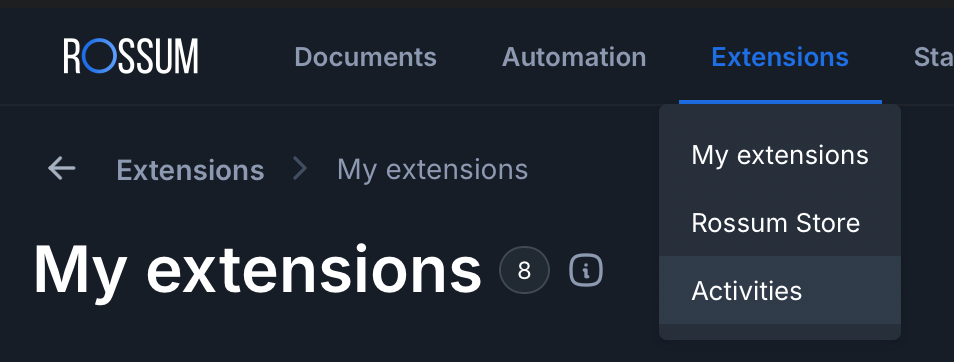
If that fails to resolve the issue you can look at the Extension Logs on Rossum (now called activities ) which should include a detailed error in the response section. Note some users on our hosted solution may not have access to this, in this case please contact support for further assistance.
The extension logs / activities menu can be found here:
Testing Your Extension
You can now test your extension connection back to Unit4 which may help solve some issues
Error Messages
Please note, when looking at error messages there may be more than one error code in the response. For example:
[EX_001]: Export Invoice Failed Previous errors: [IF_009]: Failed to export invoice due to errors in the document: Transaction with this invoice ID already exists in ERP
In this example EX_001 is a general error that lets us know it's an export which is failing. The solvable error is IF_009; for which the solution may be to edit the invoice number inline, or to remove a mis-entered invoice from ERP, or perhaps to ask the supplier to re-issue with a new invoice number in the instance that this is a mistake on their part.
Troubleshooting in Rossum Activities
We usually avoid documenting specific Rossum features as they are subject to change. However we felt that a "handy hint" for debugging in Rossum would be useful
-
Find the document / annotation id number, this will be in the url for your document for example if you are working on a document the URL will look something like this: rossum.ai/document/
87633841?datapointPath=15355140122,15355140145 The highlighted part is the annotation id, copy this -
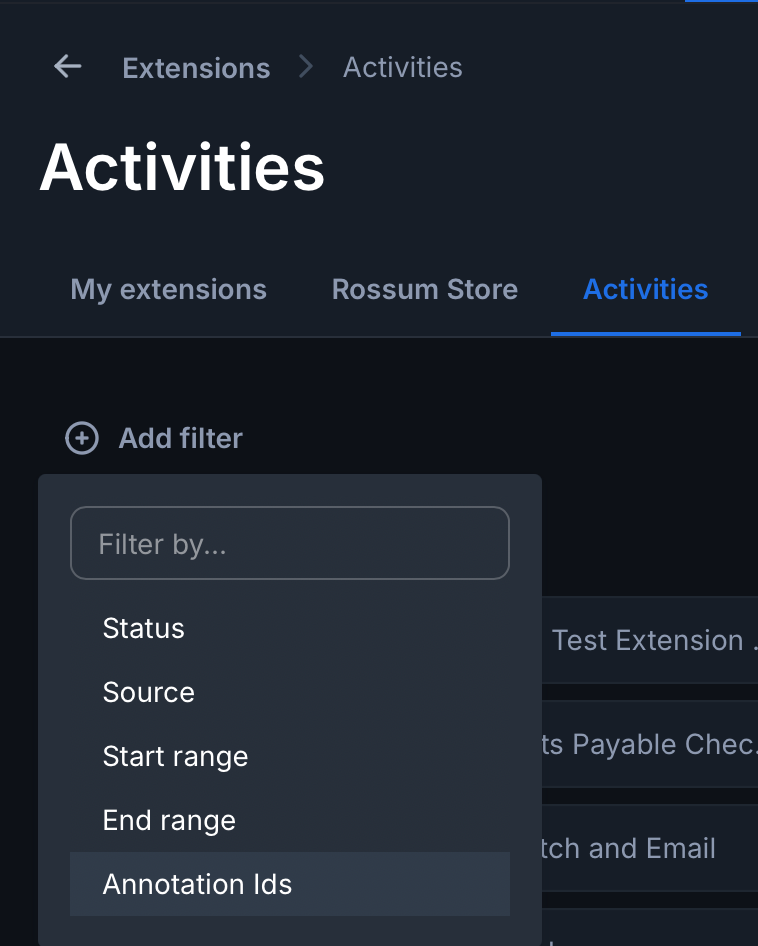
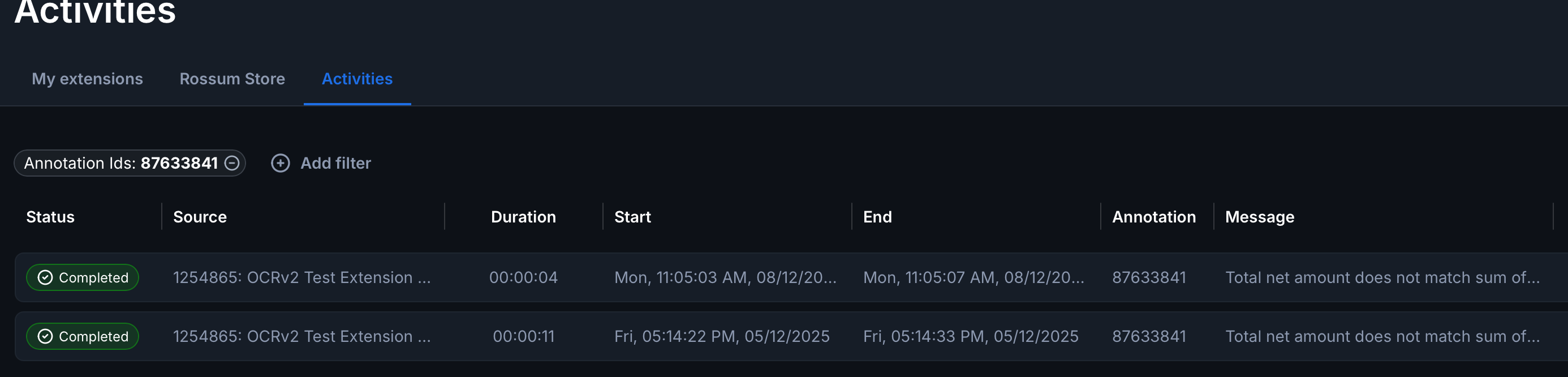
In activities select the Add filter button in the top left and choose: Annotations Ids
-
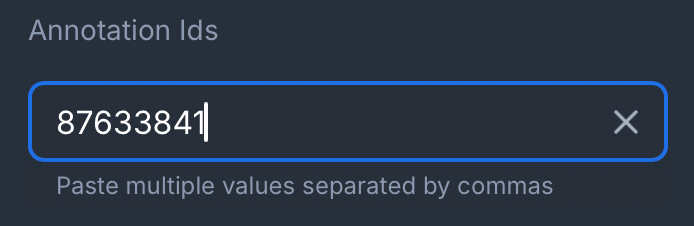
In the box add the annotation id, but notice that it won't "take", you must add the comma after the id even if there is only one
-
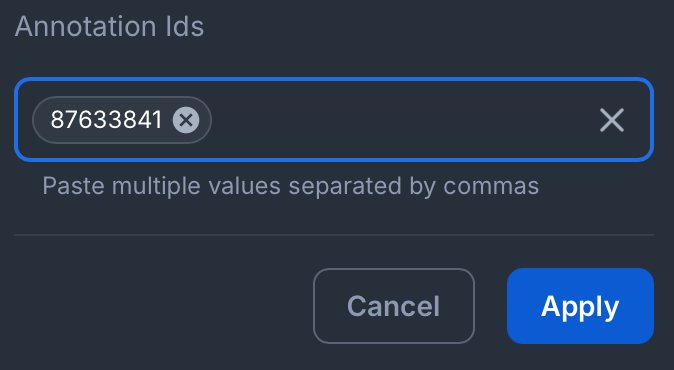
The annotation id will then "take" and you can click the apply button
-
You will then see all the "activities" for this document
-
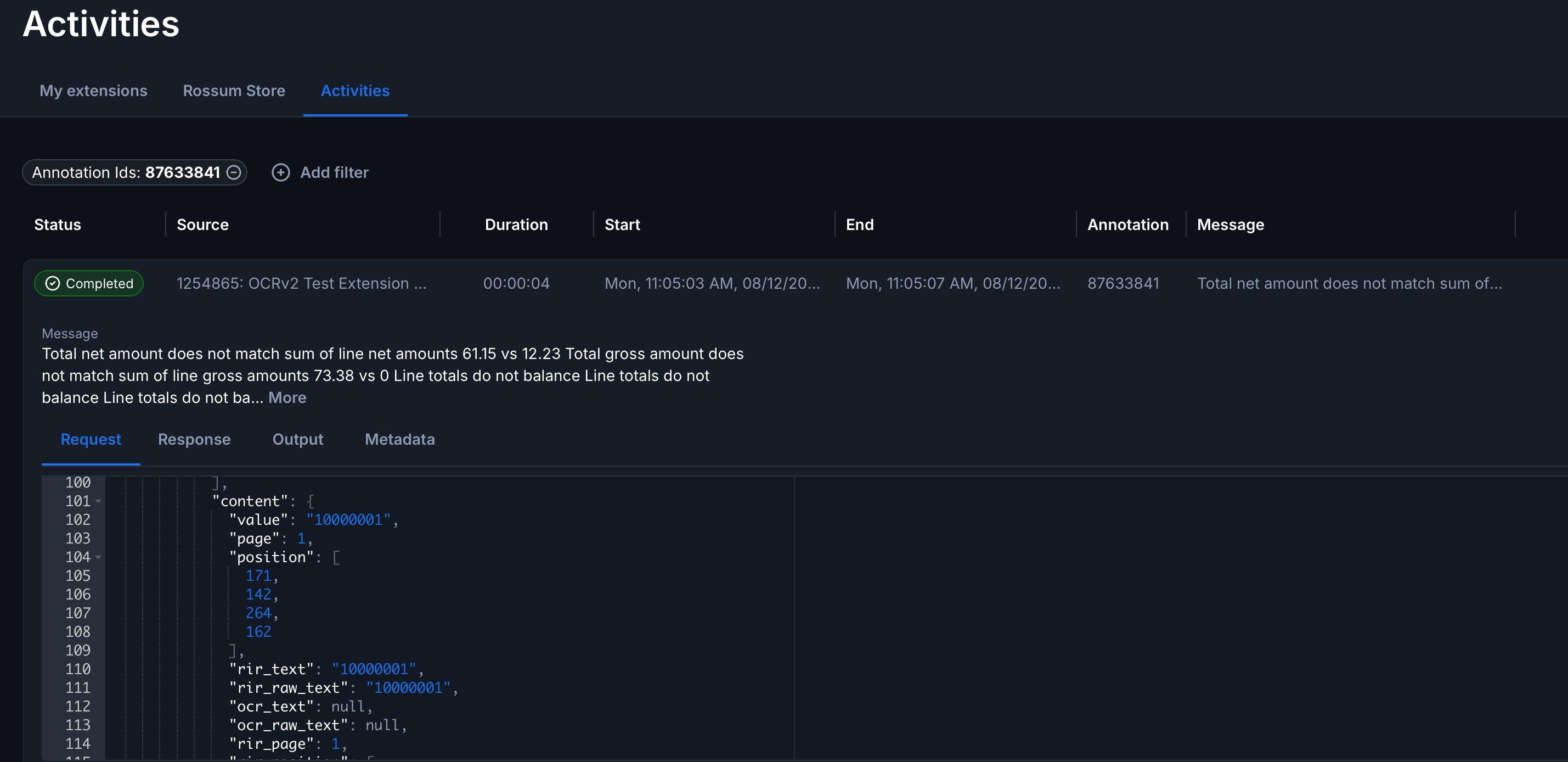
If you expand an activity you can then see the detail underneath it:
- Request : The data that rossum is sending to the extension, this should be a full document object so you should be able to find all of the data in here.
- Response: The response back from the extension which will usually include operations (where things are being updated) and messages.
- Output: Additional data may be presented here.
- Metadata: Additional data pertaining to the hook.
Common issues
Invoices are sent to Unit 4 but not marked as exported.
This is usually caused by being unable to access Rossum's API. In your extension configuration ensure there is a user selected in the Access to Rossum's API from extension dropdown, and that the chosen user has adequate permissions to mark a document as exported.
The data from unit4 is not being updated in Rossum
This is likely down to the caching and the settings that control the refresh time.
Unit4 webservice (MS7 / CR) returns a response like File size [1994322] is larger than maximum [1024000]
Even though you have a large document size set on your document type, the system still won't accept a large document.
This is a setting at the webserver level which needs to be configured in the antisamy.xml. This can only be done on the webserver so you will need to discuss this with the appropriate team (Server team / Unit4 support)
Error codes
Account Code Issues
AC_001
No company ID to fetch account codes. To resolve this issue, a valid Unit 4 company/client ID will need to be provided. either through the document schema or through the Rossum extension configuration.
AC_002
Failed to fetch account codes. This is returned when we receive an invalid response from your Unit4 ERP. The error message returned should provide further details, such as the HTTP status returned, in order for you to debug the Unit4 connection or permissions as required.
Account Rule Issues
AR_001
No company ID or account code to fetch account rules. To resolve this issue, a valid Unit 4 company/client ID will need to be provided. either through the document schema or through the Rossum extension configuration.
AR_002
Fetching Account Rules failed. This is returned when we receive an invalid response from your Unit4 ERP. The error message returned should provide further details, such as the HTTP status returned, in order for you to debug the Unit4 connection or permissions as required.
AR_003
The Account Rules returned from Unit4 ERP were not an array or the array was empty. This is usually because the input or discovered account rule Ids were invalid and should be double-checked in the document.
Attribute Issues
AT_001
Failed to fetch attributes values or relations from U4 ERP. Further details, such as the HTTP status code received, should be logged to your extension logs to help debug the issue.
AT_002
Invalid response when fetching attributes. A valid HTTP response was received but the body did not decode as expected. This is likely an issue with your Unit4 ERP API.
AT_003
Company ID required to fetch attributes. To resolve this issue, a valid Unit 4 company/client ID will need to be provided. either through the document schema or through the Rossum extension configuration.
ERP configuration Issues.
CF_001
We could not read ERP connection settings from your extension secrets. This error is returned if we cannot find either IDS or basic auth and is usually caused by partial credentials being provided.
CF_001A
Could not read ERP basic config settings. This error is thrown if we need to make a SOAP request and no Basic auth credentials are supplied in your extension secrets.
CF_002
Failed to fetch company. This may be due to a missing or invalid company ID in the Rossum extension configuration or the document schema.
Company / Client Issues
CO_001
Failed to fetch company. This may be due to a missing or invalid company ID in the Rossum extension configuration or the document schema. It may also be a permissions or access issue with your Unit4 ERP API. The included message in your extension logs should provide more detailed information.
CO_002
Cannot fetch company. No ID provided. This is likely to be due to a missing or invalid company ID in the Rossum extension configuration or the document schema.
Document Archive Issues
DA_001
Failed to send document to archive. Further details, such as the HTTP status code received, should be logged to your extension logs to help debug the issue.
DA_002
Failed to send document to archive due to missing company ID. This is likely to be due to a missing or invalid company ID in the Rossum extension configuration or the document schema.
DA_003
Failed to send document to archive. The Unit4 SOAP response did not contain the expected response and so we could not confirm receipt of the document by U4.
Invoice Export Issues
EX_001
Failed to export invoice. This was a failure to mark the invoice exported with Rossum and is most commonly due to not setting a token owner in the advanced extension settings. In most cases more information should be logged in your extension logging.
EX_002
Failed to export invoice AND failed to mark as failed! When an export fails, we attempt to mark the document as export_failed in the Rossum UI. In some cases, such as when we are missing a token owner, we cannot complete either API call. Check your extension settings to ensure that a Token Owner is correctly set.
EX_003
Failed to export invoice due to missing Rossum token. Please check that there is a token owner in the advanced extension settings on Rossum.
EX_004
Failed to export invoice due to missing Company id. This is likely to be due to a missing or invalid company ID in the Rossum extension configuration or the document schema.
EX_005
Invoice exported but transaction number not updated to invoice. This happens if there is a missing transactionIdDataPoint on the schema. When present, we will patch the schema with the U4 ERP transactionId for the new transaction to assist with audit-trails. If this field does not exist in the schema we cannot patch to it. The extension will work but the audit-trail will be incomplete.
EX_006
Invoice exported but transaction number not updated as it was not returned. This would happen if your Unit4 ERP does not return a transaction number for the newly posted invoice.
EX_007
Invoice export failed due to missing Rossum token. If an authorisation token is not provided we will not attempt the export as we cannot complete several key steps.
EX_008
Failed to read document contents. the impact of this error varies depending on ERP version. On ERP-X the invoice is posted digitally, and then the file is appended to the transaction. On prior versions of ERP the File is uploaded to document archive first and then the invoice is posted with the file reference included. As such, this error will mean either:
- On ERP7 / CR the invoice was not posted as we could not retrieve the document from Rossum. It will need to be retried once the underlying issue is resolved.
- On ERPx the invoice will have been posted but the invoice file was not attached. This can be resolved manually by appending the file in Unit4 directly.
Invoice Formatting and Validation Issues
IF_001
Failed to export invoice due to missing company id on the request from queue. This is likely to be due to a missing or invalid company ID in the Rossum extension configuration or the document schema.
IF_002
Failed to export invoice due to missing invoice number in the data. This is a document level issue. We cannot export the invoice without a reference and the document schema was missing a reference. Ensure the reference is identified in the UI before confirming.
IF_003
Failed to export invoice due to missing vendor number in the data. This is a document level issue. We cannot export the invoice without a valid vendor and the document schema was missing a vendor number. You can either specify a default supplier in the Rossum extension configuration or manually search for the supplier in the UI as outlined in the User Guide before confirming.
IF_004
Failed to export invoice due to missing currency in the data. This is a document level issue. We cannot export the invoice without a valid currency. Ensure one is selected in the UI before confirming.
IF_005
Failed to export invoice due to missing invoice date in the data. Ensure one is input to the document before confirming.
IF_006
Failed to export invoice due to missing totals in the data. Ensure the totals are correct in the document before confirming.
IF_007
EI02Variant not provided for MS7 invoice formatter. Your settings specify that you use ERP7 but there is no ei02Variant configured in Rossum extension configuration. This configuration is required for this setup.
IF_008
currentAccountingPeriod not provided for invoice formatter. This happens if we have failed to fetch the company details from unit4 ERP and may be caused by missing or incorrect company / client ID.
IF_009
Failed to export invoice due to errors in the document. This is thrown if there are unresolved errors in the document UI. To continue with the export, please address issues as listed in the UI. Export will still be attempted if there are only info and warning messages, but errors will block the exporter. If you are not seeing any errors in the UI, try clicking on the "Automation Blockers" button in the top of the sidebar.
TR_001
This occurs during the invoice-number validation. If there is an invoice number and a supplier ID we check to ensure this invoice is not a duplicate. This error means that the check failed to search existing transactions due to missing company id on the request from the queue. This is likely to be due to a missing or invalid company ID in the Rossum extension configuration or the document schema.
TR_002
This occurs during the invoice-number validation. If there is an invoice number and a supplier ID we check to ensure this invoice is not a duplicate. This error is due to the ERP system sending an unexpected response.
Invoice Export Issues
IN_001
CompanyId not provided for sending invoice to ERP. This is likely to be due to a missing or invalid company ID in the Rossum extension configuration or the document schema.
IN_002
Failed to post invoice to ERP System. This is reported when the ERP system responds in an unexpected way to the invoice being posted. Check your extension logs for more specific details such as returned HTTP codes.
Purchase Order Issues
PO_001
Failed to retrieve purchase orders from ERP System. This is reported when the ERP system responds in an unexpected way when fetching purchase orders. Check your extension logs for more specific details such as returned HTTP codes.
PO_002
Splitting invoices across purchase orders not supported. This error is raised when a single invoice document contains lines which apply to multiple purchase orders. This is currently unsupported. Please contact us if you are impacted by this issue and we may schedule changes to support it if required.
Queue Configuration Issues
QCONF_001
Invalid event body. This error is raised very early in the extraction process if the request from Rossum is not of the expected format. This may happen if the wrong events are selected for the extension.
QCONF_002
No shared secret configured. This is likely to happen if we have not yet configured authorisation for you, or if the authorisation details were not input correctly into the Shared Secret in your Rossum extension configuration. It is caused by being unable to read the secret from our data store.
QCONF_003
Invalid signature. This is likely to happen if we have not yet configured authorisation for you, or if the authorisation details were not input correctly into the Shared Secret in your Rossum extension configuration. It is caused by Rossum signing the payload with a secret which does not match the secret we have in our data stores.
You may also see this error if your extension is attached to two queues, as it may fire on both queues, one of which is not authorised. If this is the case you should clearly see the double-firing instance in your extension logs.
QCONF_004
Invalid ERP connection settings, please check your queue secrets onfigured in Rossum extension configuration
Queue Settings Issues
QSET_001
Your settings specify that you use ERP7 but there is no ei02Variant configured in Rossum extension configuration. This configuration is required for this setup.
QSET_002
Failed to validate queue extension settings. Your extension error logs should contain more details on which settings failed validation.
Supplier Group Issues
SG_001
Failed to retrieve supplier-group from ERP System. Further details, such as the HTTP status code received, should be logged to your extension logs to help debug the issue.
SG_002
CompanyId not provided for supplier-group lookup. This is likely to be due to a missing or invalid company ID in the Rossum extension configuration or the document schema.
SG_003
When retrieving supplier-group from ERP the response was malformed. Further details, such as the HTTP status code received, should be logged to your extension logs to help debug the issue.
SG_004
When retrieving supplier-group from ERP we extracted a supplier group from the response but the group was invalid.
Supplier Issues
SU_001
Failed to retrieve suppliers from ERP System. Further details, such as the HTTP status code received, should be logged to your extension logs to help debug the issue.
SU_002
CompanyId not provided for supplier lookup. This is likely to be due to a missing or invalid company ID in the Rossum extension configuration or the document schema.
Tax code Issues
TC_001
Failed to fetch tax codes from ERP system. Further details, such as the HTTP status code received, should be logged to your extension logs to help debug the issue.
Tax system Issues
TS_001
Failed to fetch tax system due to missing required companyId. This is likely to be due to a missing or invalid company ID in the Rossum extension configuration or the document schema.
TS_002
Failed to fetch tax system. Status code incorrect. Further details, such as the HTTP status code received, should be logged to your extension logs to help debug the issue.
TS_003
The HTTP request to fetch the tax system succeeded but the response body was empty.
TS_004
The HTTP request to fetch the tax system succeeded but the response body was malformed.
ERP User Issues
US_001
CompanyId not provided for user lookup. This is likely to be due to a missing or invalid company ID in the Rossum extension configuration or the document schema.
US_002
Failed to fetch user from ERP. Further details, such as the HTTP status code received, should be logged to your extension logs to help debug the issue.
Value Matrix Issues
VM_001
Failed to fetch value matrix. Further details, such as the HTTP status code received, should be logged to your extension logs to help debug the issue.
VM_002
The HTTP request to fetch the value matrix succeeded but the response body was malformed.
VM_003
Failed to fetch value matrix. Missing company ID. This is likely to be due to a missing or invalid company ID in the Rossum extension configuration or the document schema.
VM_004
Value matrix incorrectly formatted. ERP7 / CR does not support value-matrixes through the API like ERP-x does. As such this requires a simple custom object to be configured, which must match the expected format. Please see the setup documentation for more details.
Network Issues
TIME_000
This will present in the extension logs as the extension has timed out.
It may also present with Read Timeout. (read timeout = XXs)
This will be down to the response from Unit4 being too slow when calling the APIs. The total request time in making those calls has combined to exceeded the timeout.
As standard, the timeout on your extension will be 30s. If you are seeing this error then please log a ticket with support to request that the timeout is increased.
The maximum that this can be set to is 60s.
You may also wish to consider your caching settings
99_000
This code means that we could not establish a network connection to your ERP server. This indicates a low-level network error such as DNS, TLS, connection refused by firewall, etc. You will need to ensure that the connection URL returned in the error message is correct and accessible from our egress IP addresses. For our up-to-date egress addresses please contact support. You may find POSTman or a similar tool useful for debugging this.
99_400 99_500 99_401 99_403 99_404 99_405 99_503
These codes are usually going to be "standard https" error responses from the ERP system, however they may occasionally be related to internal errors.
Please see the http error codes in the FAQ
The first place to check should be the extension log as it will usually state something like HTTP request failed [your server address]
If you see your API or SOAP address in there, then you should check the logs and configuration for those endpoints in the first instance.
Internal error codes
These codes relate to internal issues. These may occasionally be triggered by unexpected configuration but are not simple to resolve externally. If you receive one of these error codes, please contact support for assistance.
- CACHE_001
- CACHE_002
- ASP_001
- 99_406
- 99_408
- 99_409
- 99_410
- 99_411
- 99_412
- 99_413
- 99_414
- 99_415
- 99_416
- 99_417
- 99_418
- 99_422
- 99_425
- 99_426
- 99_428
- 99_429
- 99_431
- 99_451
- 99_501
- 99_502
- 99_504