Statement Matching
Statement matching reconciles the lines on a supplier statement against the open and historical transactions for that supplier in your Unit4 ERP, so you can confirm what is owed without manually checking each line in ERP.
This page explains how matching behaves in the Rossum screen. For the JSON configuration syntax referenced below (match codes, match sequences and the other settings), see the statement extension configuration reference.
How matching works
Once a statement line and the supplier are identified, the system loads candidate transactions from ERP for that supplier and tries to pair each statement line to a transaction.
Matching is controlled by match codes and match sequences:
- A match code is a single rule — how closely the invoice/transaction number must match, how much date and amount tolerance is allowed, and any text cleaning to apply before comparing.
- A match sequence chains match codes together in order, from most strict to least strict, so the system tries the tightest rule first and falls back to looser rules only if nothing matches.
- Sequences can also be scoped to a specific supplier, so a difficult supplier can have its own tailored matching logic without affecting everyone else.
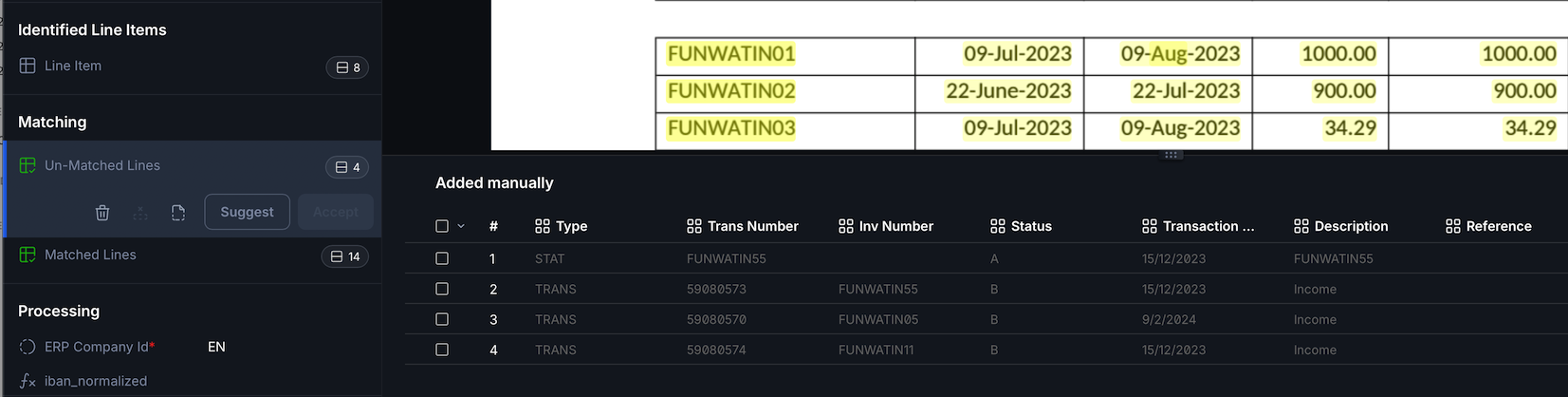
Lines that are successfully matched appear in the Matched Lines table on the document; anything left over appears in the Un-Matched Lines table.
Manual matching
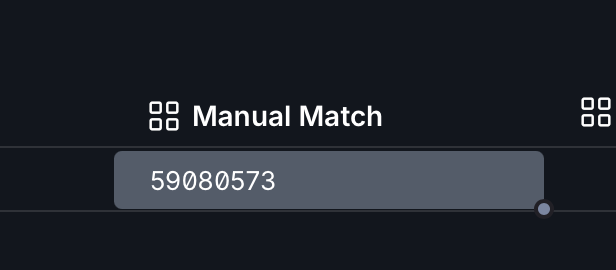
If the automated rules can't confidently match a line, it's left in the Un-Matched Lines table for a user to resolve. Manual matching is only available on statement lines, not directly on transaction lines (you'll see warning SM_009 if this is attempted the other way round) — set the Manual Match value on the unmatched statement line to the transaction it should be paired with.
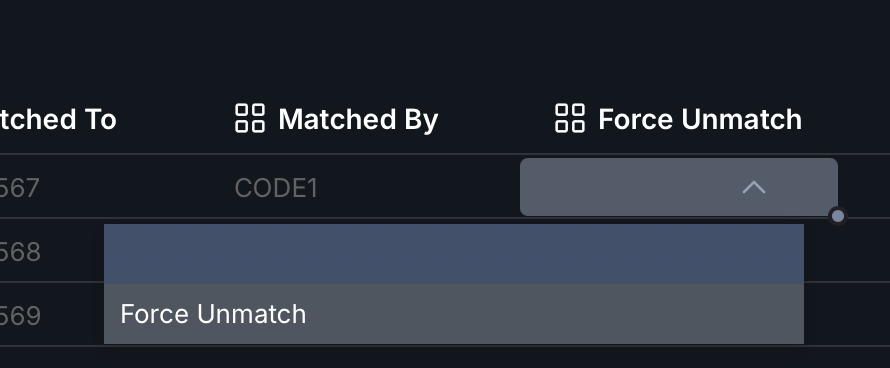
You can also force a line to stay unmatched even if a rule would otherwise have matched it, by using the Force Unmatch field on that line. This is useful where an automated match is technically correct by the rules but not the one you actually want.
If unmatched lines remain when the statement is processed, you'll see warning SM_004 ("$1 unmatched lines remain on this statement"). This can be elevated to a blocking error via elevateWarnings if you want statements with unresolved lines to be stopped from exporting.
Troubleshooting
Common issues when matching doesn't behave as expected:
- No transactions to match against — check the supplier was correctly identified (
SM_001), and thatvalidSupplierStatusandignoreTransactionTypesin the extension configuration aren't excluding the transactions you expect to see. - A transaction you expect isn't being pulled in — check
maxHistoricalDays/ a match code'shistoricDays; oldermatchedSupplierInvoices(status C) transactions outside this window are not loaded. - Invoice numbers look like they should match but don't — the relevant match code's
invNomode andcleanTextpattern control how strictly text is compared; see the matchCodes reference for the available options.
For the full list of statement-related codes, see the Statement Matching section of the message codes reference.